Extract any YouTube transcript instantly. Free, fast, and ready for AI.
Turn any YouTube video into a transcript instantly. Copy, search, and analyze with AI to extract key takeaways, generate notes, and understand content faster.
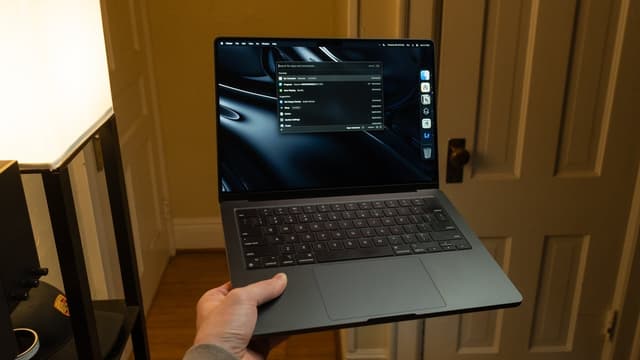
How I Setup My Mac So It Doesn't Ruin My Life
Summary
Cole Caccamise shares his Mac setup and productivity tips refined over seven years of use, aimed at creating a clean and efficient work environment. • Disable desktop icons and use hot corners for quick access to files. • Focus on one window at a time, using command+H to hide apps and command+Q to quit them, and use Mission Control to navigate between windows. • Keep the dock tidy by removing unnecessary apps, disabling suggested apps, and auto-hiding it, and use a script to remove the animation delay. • Use Bartender to hide less essential menu bar items and display useful information like water reminders and calendar events. • Organize files into folders and use Finder tips such as searching in the current folder, renaming files quickly, and moving files with command+option+V.
Transcript
293 segments
this is how I set up my Mac so it
doesn't ruin my life I've spent the last
7 years and thousands of hours working
on a Mac but I distilled for you in this
video the best Mac setup and
productivity tips that I found to start
having a clean setup is the foundation
for creating a productive work
environment for me whenever I have
clutter I get distracted so I do
everything I can to keep my Mac looking
clean because of this the moment I set
up a new Mac I head into the desktop in
Doc settings where I disable show icons
on the desktop and just show my
wallpaper I hate the look of all those
files cluttering up the space but if I
ever need them I can just drag into the
corner this is set up using hot Corners
which lets you bind various different
functions to each of the four corners of
your display you're probably most
familiar with this when it comes to
quick note in the bottom right corner
which I've mostly done unintentionally
to solve this scroll all the way down
and click on hot Corners then hold
command while hovering over each of the
shortcuts you want to configure I keep
quick note in the bottom right but then
add show desktop at the left if there's
ever any files I want to have easy
access to next up is something I
wouldn't have wanted to hear when I
first got these dual Ultra wides and
that stop multitasking unless you're
doing something like programming where
you need a browser Tab and editor open
at the same time you should only keep
one window open so you're completely
focused there's two keyboard shortcuts
you should remember for this command H
immediately hides an app only revealing
it again once you click it in the dock
or search it within Spotlight command Q
on the other hand completely quits an
app in the case you're done with it now
sometimes I won't hide all my apps and
just have them stacked on top of each
other and for me the quickest way to
navigate between these is with Mission
Control by default if you have more than
one window open for the same application
they'll be separated from each other if
you go into settings and select group
windows by application it makes mission
control a lot less cluttered once you
set that up I highly recommend
downloading rectangle so that you can
snap windows to the sides of your screen
like in Windows you can do this even
faster by learning the keyboard t cuts
the one I use are control option arrow
keys to snap to each side control option
C to quickly Center a window and control
option return to maximize next I like to
keep my dock as tidy as I can I used to
have dozens of apps open here at a time
which just reminded me of all the other
things I could do instead of work now I
clear out everything but the absolute
Essentials and disable show suggested in
recent apps in the dock I also enable
minimize window into application icon so
that no extra space is unnecessarily
taken up I've been using Arc a lot
recently which has me using the sidebar
so I decided to put the dock onto the
right side this doesn't make me more
productive but I do like how it looks
what does make an impact though is auto
hiding the dock which means I can use
all 34 in of real estate that I have on
my ultrawide also since I only see the
dock when I need to open a new app it's
not a distraction the only downside is
the delay in animation Waits a couple
seconds but if you run this script in
your terminal it removes that delay
entirely I I threw this into a notion
document just so I had it for myself but
if you don't feel like typing I put a
link to it in the description now I like
to start every morning with a cup of
coffee and make another during the day
as I love the ritual of brewing and
drinking a warm cup but it also helps me
Focus while working at my desk a few
weeks ago my new X blo Studio delivered
and this machine is gorgeous X blo is
sponsoring today's video but even before
they reached out I was really excited
about this I have the Black Version here
in the office and it makes for the
perfect addition to the space as I can
really quickly Brew up a cup and get
back to work there's three modes for
Brewing that the xlim studio gives you
first is autopilot this is meant to be
used with X Bloom's X pods which is the
easiest way to try out and Brew new
coffee roasts there's tons of different
options on their website but to brew a
cup with one you just have to pour the
beans into the built-in grinder which
we'll get to in a moment then place the
xod into the dock and scan the included
recipe card once you press the start
button the machine automatically Begins
the grinding and Brewing proc process
the second mode is co-pilot which allows
you to use any coffee beans you'd like
with their Omni dripper and have the
flexibility to set your own settings
each time this can be done remotely
within the app or manually with the
knobs on the machine the last mode is
the free solo mode which unlocks
independent control of the entire
machine letting you experiment with
different coffee brewing Styles or even
make tea the built-in grinder gives you
control over the grind size and the
speed at which it will grind up the
beans additionally there's a built-in
scale with a drip tray so that you don't
make a mess the Brewer offers multiple
styles of dispensing to extract as much
coffee as possible every time my
favorite being the circular option once
you find the settings you like best you
can Brew up a perfect cup every time in
less than 3 minutes so the X Bloom
studio is perfect if you live a busy
life like me or just want to enjoy
specialty coffee in your home the menu
bar is one of my favorite things about
Mac OS as it can display a ton of info
for you in a very small space to make
the most of it and reduce clutter I
recommend using an app like bartender to
hide all but the most essential items I
have a water reminder a time tracker
that shows how long it's been since I
left my desk my current or upcoming
calendar event and then my favorite this
app one thing that lets you put whatever
corny motivational quote that you're
feeling for the day I got rid of the
battery indicator and instead used a
widget that can be quickly revealed by
clicking up in the top Corner if you
stay up here in option click the time
you can instantly enable do not disturb
which is something I used the vast
majority of the day now everything I've
mentioned thus far has made a big impact
but when things really started to take a
turn for me was when I focused on having
good file organization the more
organized my finder became the less time
that I'd waste looking for files there's
no perfect way to set this up but here's
my simple system that's worked very well
in my documents folder I've created a
few folders for development business
wallpapers Etc which makes it really
easy to store files and find them later
I like to keep a couple of these folders
pinned to the sidebar for quick access
access and remove everything else once
you have something similar to this it's
time to learn a few finder tips that
will help you use it most effectively by
default when you search in finder it's
going to be globally on your Mac which
most of the time isn't what you want in
the advanced settings of finder you can
change this to search the current folder
which is a lot more helpful to quickly
rename a file you can hit return with it
selected if you have multiple files
selected you can rename all of them with
a certain pattern by right clicking and
pressing rename if when you're
reorganizing your finder you want to
copy a bunch of files and move them
somewhere else you can hit command C and
then command option V it will paste
these files in the new location while
removing them from the old one at some
point you'll want to open a file into a
specific app and if you drag and drop
the file from finder over the icon it
will do just that now by default every
time you reopen finder it will land into
the Recons folder which you probably
don't want you can quickly enter
settings by hitting command comma and
within general settings select from the
drop down under the text new finder
Windows show wherever you want to end up
now don't get me wrong I actually really
enjoy the Mac trackpad but having a
proper Mouse makes working so much
easier by default though Mac OS does
some weird with mice so downloading
linear Mouse is a lifesaver linear Mouse
makes sure all connected my scroll
independently and you can also set how
many lines you want to scroll at a time
if we're being real though you'll never
be productive on Mac if you don't know
keyboard shortcuts in the beginning it
seems super difficult to remember dozens
of different shortcuts for all these
different apps but but as you get more
familiar with them they just get
entrenched into your muscle memory the
bear Essentials are command tab to jump
between different open applications and
command Q to instantly quit your current
one we all know typing faster is
beneficial but before you grind monkey
Type 4 hours every night just
remembering a few shortcuts will
instantly make you a faster typer
instead of using the arrow keys to go
back and fix a word you misspelled it's
almost always faster to hit option
delete and restart hitting command
delete will remove the entire line or
you can jump from the beginning to end
using command left and right you can
jump between words rather than
characters by holding option when
hitting the arrow keys which makes
fixing small typos or adding words much
quicker now onto the browser I use ARC
because I love the design but these tips
will work in both Safari and chrome
there's a few shortcuts that will make
you much faster these being command T to
open a new tab command W to close your
current Tab and shift command T to
restore your last close tab using
command in the brackets allows you to
quickly go forward and back but you can
select a specific Page by hovering over
the back arrow I've mentioned Spotlight
throughout this video but raycast is a
replacement that I've used and recommend
raycast gives you access to a ton of
built-in Mac OS commands such as setting
the output device this is one I make use
of daily when going between my speakers
and headphones using the search files
command you can instantly open a new
file or even drag it from raycast into
wherever you want to put it what I like
most is you can set keyboard shortcuts
to open up applications or perform these
commands all within raycast which if you
have their Pro subscription will sync
all of these across any Mac that you
have connected so this is super
convenient if you use a different laptop
for work something I didn't think I'd
use that much is clipboard history but
I've now set option shift fee to open
this up and it means I never have to go
back and forth copying different pieces
of text or even files the last feature
worth mentioning is Snippets which saves
so much time so that you're not
constantly typing out the same pieces of
text like your email or shipping address
you can then set a keyboard shortcut or
replace text to activate the snippet if
you found anything about my Mac setup
useful watch this video next where I go
over the apps that actually have an
impact on my productivity take care
YouTube to text in seconds
Get any video's transcript and drop it straight into ChatGPT, Claude, or your own notes. No login required.
One-click copy
Copy the full transcript or specific sections instantly to use anywhere.
Searchable text
Find exactly what you're looking for with full-text search across the transcript.
AI summaries
Generate concise summaries and extract key takeaways automatically.
Instant results
Get transcripts in seconds. No waiting, no processing delays.
Built for
Students & Researchers
Convert lecture videos and tutorials into searchable notes. Generate study guides and extract key concepts with AI.
Content Creators
Research outlier videos, repurpose content into blog posts, or find inspiration for new content.
Marketers & Analysts
Analyze product reviews, track brand mentions, and understand customer sentiment from video content.
Frequently asked questions
How do I get a YouTube video transcript?
Paste the YouTube video URL into the input field and click "Get transcript." Your transcript will be ready in seconds.
Is Repackage free to use?
Yes, Repackage is free for basic transcript extraction. No account or payment required to get started.
What can I do with the transcript?
Copy the text, search for specific content, generate AI summaries, create study notes, or use it as source material for your own content.
Does it work on any YouTube video?
Repackage works on any public YouTube video that has captions available, whether auto-generated or manually added.
How does the AI analysis work?
Our AI reads the transcript and generates summaries, key takeaways, and structured notes to help you understand the content faster.
Are there any limits?
There are fair use limits to prevent abuse, but more than enough for the average user. No payment required. Limits are subject to change.
Start extracting YouTube transcripts
Paste any YouTube URL and get your transcript in seconds. Free to use, no account required.